
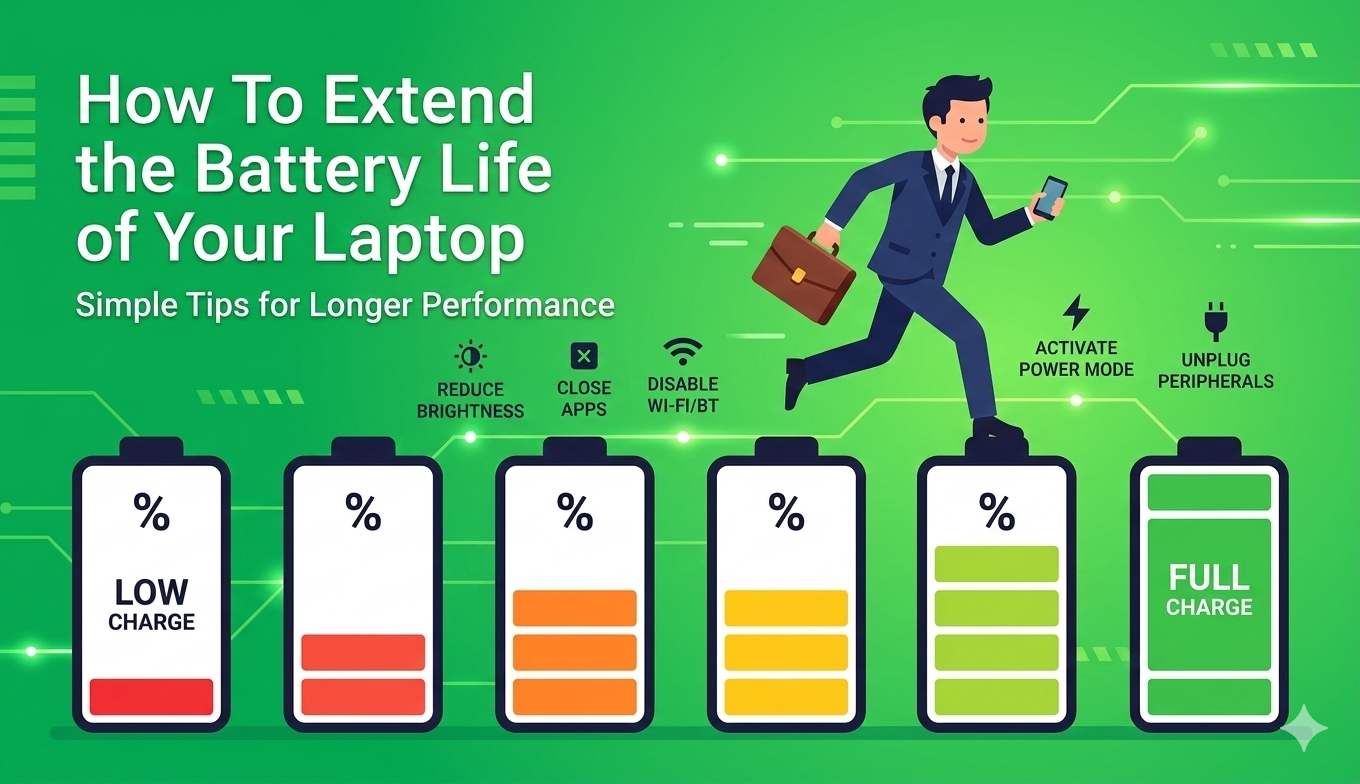
How To Extend The Battery Life Of Your Laptop
The Complete Expert Guide To Longer Laptop Battery Life | TechCM Electronics Store Africa | 2025–2026
It is one of the most frustrating moments in modern life: you are deep in a presentation, a video call, a report, or a gaming session — and your laptop flashes that dreaded low-battery warning. Suddenly, everything stops. You scramble for a charger, lose your flow, and interrupt whatever you were doing. For millions of users across Africa — students in Nairobi, professionals in Lagos, freelancers in Cape Town, entrepreneurs in Accra — a laptop is not just a device. It is a productivity hub, a business tool, a creative studio, and a communication lifeline. Protecting and extending its battery life is not a minor convenience. It is a practical necessity. At TechCM, Africa’s number one electronics store, we have compiled the definitive expert guide to extending the battery life of your laptop in 2025 — drawing on the latest research, real-world data, and platform-specific guidance for Windows and macOS users alike.
Understanding Your Laptop Battery — The Science Behind The Drain
Before diving into specific tips, it helps to understand how your laptop battery actually works — and why it degrades over time. The overwhelming majority of modern laptops — from entry-level Windows notebooks to the latest Apple MacBook Air M4 with its 18-hour battery life — use Lithium-ion (Li-ion) or Lithium-Polymer (Li-Po) batteries. These batteries generate electricity by moving lithium ions between a positively charged cathode and a negatively charged anode through a liquid or gel electrolyte. They are chosen for laptops because of their high energy density, relatively light weight, and ability to handle hundreds of charge-discharge cycles — typically between 300 and 1,000 depending on usage and care.
The fundamental enemies of a laptop battery are three: heat, deep discharges, and sustained high charge levels. A 2025 study published in the Journal of Consumer Electronics found that laptops consistently kept below 30°C maintained 95% of their original battery capacity after three years of use, compared to just 70% at 45°C — a dramatic difference driven entirely by operating temperature. The Battery Foundation’s 2024 report confirmed that batteries stored and operated between 40% and 60% charge retain 90% of capacity after two years, compared to just 75% for batteries kept at a constant 20%. And frequent full discharges below 20% have been shown to stress lithium-ion cells, accelerating electrochemical wear at a measurable rate. The good news is that all three of these enemies are largely within your control — and the tips below address each one systematically.
The 10 Expert-Recommended Ways To Extend Your Laptop Battery Life
1. Reduce Screen Brightness — The Single Biggest Battery Win
Your display is the most power-hungry component in your laptop — responsible for approximately 30 to 40 percent of total battery consumption under typical usage. The single fastest way to extend your battery life in any situation is to reduce screen brightness. On most laptops, dropping brightness from 100% to around 50–60% is barely perceptible to the human eye in normal indoor conditions, yet it delivers an immediate and measurable reduction in power draw. In 2024, manufacturers responded to consumer demand by adopting OLED and Mini-LED displays in 36% of premium laptops — technologies that consume 20–30% less power than traditional LCD panels at equivalent brightness settings, making display upgrades a meaningful long-term battery investment.
On Windows 11, go to Settings → System → Display → Brightness and drag the slider to between 40 and 60 percent. Enable the “Change brightness automatically when lighting changes” option, which uses your laptop’s ambient light sensor to dynamically reduce brightness in dim environments without requiring manual adjustment. On macOS, go to System Settings → Displays → Brightness and similarly reduce the slider, and enable “Automatically adjust brightness” to engage the adaptive system. For African users who often work in bright outdoor environments — on terraces in Accra, in open offices in Nairobi, or at outdoor cafés in Johannesburg — an anti-glare screen protector from TechCM allows you to work comfortably at lower brightness levels, delivering both eye comfort and extended battery life simultaneously.
Key Stat: The display accounts for 30–40% of total laptop battery consumption. OLED displays in premium 2024–2025 laptops consume 20–30% less power than LCD at equivalent brightness. Reducing brightness from 100% to 50% is consistently the fastest single battery-saving action available. — Persistence Market Research / WorldMetrics, 2025
2. Use Battery Saver / Power Efficiency Mode
Every modern laptop operating system includes a built-in power management mode designed specifically to extend battery runtime by intelligently reducing background activity, processor performance, and display output. On Windows 11, navigate to Settings → System → Power & Battery. Here you will find a Power Mode slider with three options: Best Power Efficiency, Balanced, and Best Performance. When running on battery, switching to Best Power Efficiency is described by battery experts as “the single most effective thing you can do” — with Windows automatically throttling background processes, reducing display brightness, and managing processor frequency to deliver maximum runtime. Additionally, enable Battery Saver mode, which can be set to activate automatically at a threshold you choose (commonly 20% or 30%), cutting background notifications and syncing to preserve the remaining charge.
On macOS, Apple introduced Low Power Mode — accessible via System Settings → Battery → Low Power Mode — which reduces background processing, lowers display brightness, and slows certain background tasks to extend runtime. MacBook users running Apple Silicon (M1, M2, M3, or M4 chips) benefit from the most power-efficient laptop processors currently available: the MacBook Air M4, launched in early 2025, delivers up to 18 hours of battery life — the longest of any mainstream laptop — in part because Apple’s chip architecture allows granular power gating of individual processor cores that is simply not possible in traditional x86 designs. HP’s OMEN Gaming Hub ECO mode, available on HP gaming laptops, increases battery life by up to 20% through intelligent power management — demonstrating that even high-performance gaming systems benefit significantly from software-level battery optimisation.
Key Stat: HP OMEN Gaming Hub ECO mode extends battery life by up to 20%. Apple MacBook Air M4 delivers 18 hours of battery life in Low Power Mode. Dell’s 2025 flagship ultrabooks exceed 18 hours — 12% above the industry average. Power mode selection is the fastest software-level battery optimisation available on any platform. — Dell / HP / Apple / WorldMetrics, 2025
3. Close Background Apps And Manage Startup Programmes
One of the most frequently overlooked causes of rapid battery drain is the accumulation of background applications that consume processor, memory, and network resources even when you are not actively using them. Browser tabs are among the worst offenders — a single open Chrome or Edge window with 10+ tabs active can consume as much power as a lightweight application running in full screen. Cloud synchronisation services like OneDrive, Google Drive, and Dropbox continuously scan for file changes and upload in the background, generating constant low-level processor and network activity. Antivirus software running real-time scans, system update services, and communication apps like Teams, Slack, and WhatsApp desktop all contribute to a background power drain that accumulates rapidly over a work session.
On Windows 11, open Task Manager (Ctrl + Shift + Esc) and click the “Startup apps” tab to disable applications that launch automatically when your laptop boots — a common source of background drain that most users have never reviewed. The “Processes” tab sorted by CPU usage will reveal which apps are consuming the most power at any given moment. On macOS, open Activity Monitor (Applications → Utilities → Activity Monitor) and click the Energy tab to see a ranked list of applications sorted by their energy impact. Quit any applications not actively in use. For African users running WhatsApp Web, Zoom, Microsoft Teams, and cloud storage services simultaneously — common in Lagos, Nairobi, and Johannesburg professional environments — a quick background app audit before an important meeting can add 30 to 60 minutes of usable battery runtime.
Key Stat: Turning off background processes and unnecessary apps is consistently identified as a top-five battery-saving measure across all major laptop platforms. Over 72% of laptop users worldwide rely on laptops for daily tasks, creating a strong need for background process management to maintain productivity throughout the day. — WorldMetrics / Reanin Research, 2025
4. Turn Off Wi-Fi, Bluetooth, And Connectivity Features When Not In Use
Wireless radios — Wi-Fi, Bluetooth, and location services — are continuous power consumers that remain active in the background even when you are not actively using them. Your laptop’s Wi-Fi radio is constantly scanning for available networks, maintaining active connections, and processing incoming data — all of which consume battery power. Bluetooth similarly maintains an active low-energy radio signal even when no devices are paired, and in areas of weak Wi-Fi signal — common in many parts of Africa where network infrastructure is still expanding — your laptop’s Wi-Fi radio actually consumes more power as it amplifies its signal to maintain a connection, creating a counter-intuitive situation where poor connectivity actively drains your battery faster.
When you are working offline — editing documents, writing, using local software, or reviewing downloaded content — disabling Wi-Fi and Bluetooth entirely can extend your battery runtime by 20 to 45 minutes. On Windows, open the Action Centre (bottom right of the taskbar) and toggle Wi-Fi and Bluetooth off with a single click. On macOS, use the Control Centre (top right menu bar) for instant one-click toggles of both radios. For users working in areas of poor connectivity in Lagos, Dar es Salaam, or rural South Africa, switching to aeroplane mode while working locally and re-enabling connectivity only when needed is a simple habit that delivers consistent battery gains throughout the working day. Also disable location services when not needed — on both Windows and macOS, location tracking generates background GPS and network triangulation activity that contributes to battery drain.
Key Stat: In areas with weak Wi-Fi signals, your laptop’s wireless radio can consume up to 30% more power maintaining a connection than it would in a strong signal environment. Disabling Wi-Fi, Bluetooth, and location services during offline work is identified by battery research experts as a top practical saving for users across all laptop types. — Chargie Battery Research / WindowsForum, 2025
5. Optimise Your Charging Habits — The 20–80% Rule
One of the most impactful long-term habits for preserving your laptop battery’s health — and therefore its per-charge runtime over months and years — is adopting the 20–80% charging rule. Lithium-ion and lithium-polymer batteries experience the least electrochemical stress when they are operated in the middle of their charge range. Keeping your battery constantly charged to 100% creates high-voltage stress on the battery cells that accelerates degradation over time. Conversely, allowing your battery to regularly drain below 20% creates deep-discharge stress that similarly accelerates wear. The ideal operating range for maximum long-term battery health is between 20% and 80% charge — a rule endorsed by Apple, Lenovo, Dell, HP, and virtually every major laptop manufacturer’s battery care guidance.
Many modern laptops now include software-level charging limits that can enforce this rule automatically. On Windows laptops, Lenovo’s Vantage app, HP’s Battery Health Manager, and Dell’s Power Manager all include a charging threshold setting — typically configurable to stop charging at 80% — that preserves long-term battery health without requiring you to manually manage your charging cable. On Apple MacBooks, the Optimised Battery Charging feature (enabled by default in macOS) learns your daily charging routine and automatically limits charging to 80% when it predicts you will remain plugged in for an extended period, releasing to 100% only before you typically unplug. For African users who frequently work at home or in an office and keep their laptop connected to power for most of the day — a common scenario given variable power supply conditions in South Africa, Nigeria, and Kenya — enabling a charging limit of 80% is one of the most valuable long-term investments in your laptop’s battery health you can make.
Key Stat: Batteries operated between 20–80% charge retain significantly more capacity over time versus those kept at 100%. The Battery Foundation’s 2024 report confirmed devices kept between 40–60% for storage retain 90% of capacity after two years, compared to just 75% at 20%. LG Chem’s 2023 fast-charge battery achieves 80% charge in under 30 minutes, making partial charging more practical than ever. — Battery Foundation / LG Chem / Chargie Research, 2025
6. Manage Heat — Keep Your Laptop Cool
Heat is the number one enemy of laptop battery longevity — and it is a particularly relevant consideration for users across Africa, where ambient temperatures in cities like Lagos, Accra, Mombasa, and Khartoum regularly exceed 30–35°C for months at a time. A 2025 study published in the Journal of Consumer Electronics produced the most precise data yet on the relationship between temperature and battery degradation: laptops consistently kept below 30°C retained 95% of their original battery capacity after three years, while those operated at 45°C retained just 70%. That is a 25-percentage-point difference in remaining battery capacity driven entirely by operating temperature — equivalent to losing approximately 2–3 hours of runtime over a three-year ownership period.
The most important thermal management habit is never placing your laptop on soft surfaces — beds, sofas, cushions, or carpets — that block the ventilation vents on the bottom and sides of the chassis. A blocked vent forces the internal fan to work harder, raises the internal temperature, and accelerates battery degradation. Always use your laptop on a hard, flat surface — a desk, a table, or a dedicated laptop stand. For demanding tasks like video editing, gaming, large spreadsheet processing, or running multiple virtual machines, a laptop cooling pad — available at TechCM — places the chassis on an elevated platform with additional fans that can reduce operating temperatures by 5–10°C, a difference that meaningfully extends both per-session runtime and long-term battery health. Keep laptop software updated — OS and driver patches frequently include thermal management improvements that reduce processor heat output without affecting performance. And keep your laptop away from direct sunlight, which heats the chassis from outside and compounds the internal thermal challenge.
Key Stat: Laptops cooled below 30°C retain 95% capacity after 3 years vs 70% at 45°C. Heat above 35°C accelerates chemical battery breakdown, reducing capacity by up to 15% over six months. African climates — particularly coastal and equatorial cities — make thermal management a more critical battery factor than in temperate markets. — Journal of Consumer Electronics 2025 / Arora Tech 2025
7. Update Your Operating System And Drivers Regularly
Regularly updating your laptop’s operating system and hardware drivers is one of the simplest and most consistently overlooked ways to improve battery performance over time. Every major Windows and macOS update includes battery efficiency improvements — from optimised memory management that reduces unnecessary CPU wake cycles, to improved power gating for idle processor cores, to updated thermal management algorithms that run the cooling fan more efficiently. Driver updates — particularly for the graphics card, chipset, and Wi-Fi adapter — similarly include power optimisation improvements that reduce the baseline power draw of hardware components during idle and light-use scenarios.
The integration of AI-powered battery management is accelerating the impact of software updates on battery life. In 2025, 40% of high-end laptops featured neural processing units (NPUs) designed for on-device AI tasks, with manufacturers including Lenovo, HP, and Dell deploying AI-powered battery management systems that learn usage patterns and proactively adjust power states to maximise runtime without user intervention. Battery health management systems integrated at the OEM level have been shown to reduce thermal wear and extend battery life by 25% compared to 2020 baseline models. On Windows, ensure updates are enabled via Settings → Windows Update. On macOS, go to System Settings → General → Software Update and enable Automatic Updates. For older laptops running outdated drivers — common in the African market where devices are often used for many years — a driver update alone can meaningfully improve battery performance.
Key Stat: Major OEMs’ integrated battery health management systems reduce thermal wear and extend battery life by 25% versus 2020 models. In 2025, AI-powered battery management is deployed in 40% of high-end laptops. Regular OS and driver updates remain one of the easiest battery optimisation actions available. — MarketGrowthReports / PCRenewed / WorldMetrics, 2025
8. Disconnect External Peripherals When Not In Use
Every device plugged into your laptop’s USB ports draws power directly from your battery — whether you are actively using it or not. External hard drives and SSDs draw significant power during data access and even during idle standby. USB-connected webcams, RGB keyboards, gaming mice, and presentation clickers all maintain an active power draw throughout their connection. Most significantly, many users keep their smartphones or wireless earbuds plugged into their laptop for charging while running on battery — directly transferring battery power from their laptop to their phone, compounding the drain rate at exactly the moment when conserving battery matters most.
The habit of unplugging peripherals when not actively in use is straightforward and requires no technical knowledge: simply disconnect USB devices, external drives, and charging cables for devices not currently in use. If you use an external mouse — strongly recommended for productivity — opt for a Bluetooth model from TechCM rather than a USB-dongle model, and remember to disconnect it via Bluetooth settings when you will not be using the laptop for extended periods. DisplayPort and HDMI connections for external monitors also consume power — when working from battery, disconnecting external display cables and closing unused display outputs prevents unnecessary GPU power consumption. For South African, Nigerian, and Kenyan office users running a full desk setup — external monitor, USB hub, keyboard, mouse, webcam — transitioning to battery mode means disconnecting everything except what is immediately necessary.
Key Stat: Unplugging USB peripherals and external devices is consistently identified in battery optimisation research as a measurable power saving — particularly significant for users who routinely charge phones or connect external drives while on battery. USB-connected devices can collectively account for 5–15% of total laptop battery draw under typical use. — WorldMetrics / Chargie Battery Research, 2025
9. Calibrate Your Battery Periodically
Over time, the software that estimates your laptop’s remaining battery percentage can drift out of sync with the battery’s actual capacity — producing unreliable readings that either show more charge than exists (leading to unexpected shutdowns) or report low battery too early (causing premature plugging in). This drift occurs because the battery management software tracks charge using historical data about the battery’s capacity, and as that capacity naturally declines over hundreds of charge cycles, the software’s model becomes less accurate unless periodically recalibrated. Calibration is the process of allowing the battery to fully discharge to near-empty, then fully recharging to 100%, giving the battery management system a fresh reference point for accurate capacity estimation.
On Windows, you can generate a detailed Battery Report by opening a Command Prompt or PowerShell window and typing: powercfg /batteryreport — this produces an HTML report saved to your user folder showing your battery’s designed capacity, current full-charge capacity, and cycle count history. A battery showing full-charge capacity significantly below designed capacity should prompt you to consider a replacement. On macOS, hold the Option key and click the Apple menu → System Information → Power to see your battery’s current cycle count and condition status. Apple rates MacBook batteries for 1,000 charge cycles before they may begin to lose capacity below 80% of original. Battery replacement services are available through TechCM, Africa’s number one electronics store, for most major laptop brands — with genuine manufacturer-certified battery units that restore your laptop’s original runtime.
Key Stat: Typical laptop batteries lose approximately 20% capacity after 300 charge cycles — with this figure reaching 20–30% after three years of daily use in 2025 data. The powercfg /batteryreport Windows command and macOS System Information both provide free built-in tools to monitor battery health that most users have never used. — WorldMetrics / Arora Tech / Battery Foundation, 2025
10. Adjust Visual Effects And Disable Unnecessary Features
Modern operating systems are filled with visual polish — animated window transitions, transparency effects, live wallpapers, dynamic screen savers, and UI animations — that consume GPU and CPU resources continuously. While individually minor, these effects accumulate into a meaningful background power draw that, over a full working day, can account for 20 to 40 minutes of battery runtime. Disabling or reducing these effects on battery power is a simple and largely invisible optimisation that most users can make without any perceptible change to their day-to-day experience.
On Windows 11, search for “Adjust the appearance and performance of Windows” in the Start menu and select “Adjust for best performance” to disable all visual effects simultaneously, or manually deselect animations and transparency effects. Additionally, disable the Dynamic Lighting feature if your laptop has an RGB keyboard, as LED lighting draws constant power from the battery. On macOS, go to System Settings → Accessibility → Display and enable “Reduce Motion” and “Reduce Transparency” — these settings disable the parallax effect, window animation transitions, and the frosted-glass transparency in the menu bar and Dock. Disable Live Photos screensavers and avoid animated wallpapers, which require continuous GPU rendering. Turning off “Hey Siri” on Mac and Cortana’s always-listening mode on Windows also eliminates the continuous microphone-monitoring power draw these features maintain in the background.
Key Stat: Visual effects, animations, and continuously active system features collectively contribute a measurable but underestimated share of background battery drain. A comprehensive audit of five common areas — power profile, display, background apps, visual effects, and wireless radios — delivers runtime gains without sacrificing usability. — WindowsForum Battery Optimisation Guide, August 2025
Platform-Specific Battery Settings Guide
The steps for accessing key battery settings differ between Windows and macOS. Here is your quick-reference platform guide from the team at TechCM, Africa’s number one electronics store.
Power Mode: Settings → System → Power & Battery → Power Mode → Best Power Efficiency
Battery Saver: Settings → System → Power & Battery → Battery Saver → Turn On Now (or set auto-threshold)
Screen Brightness: Settings → System → Display → Brightness (set to 40–60%)
Startup Apps: Task Manager (Ctrl+Shift+Esc) → Startup Apps → Disable non-essential apps
Battery Report: Command Prompt → type: powercfg /batteryreport
Visual Effects: Search “Adjust the appearance and performance of Windows” → Adjust for best performance
Charging Limit: Lenovo Vantage / HP Battery Health Manager / Dell Power Manager → Set charge limit to 80%
Sleep Settings: Settings → System → Power & Battery → Screen and Sleep → Set to shortest comfortable interval
Low Power Mode: System Settings → Battery → Low Power Mode → Always / On Battery
Optimised Charging: System Settings → Battery → Optimised Battery Charging → Enable
Screen Brightness: System Settings → Displays → Brightness (set to 40–60%, enable auto-adjust)
Energy Monitor: Activity Monitor (Applications → Utilities) → Energy tab → Quit high-drain apps
Battery Health: Hold Option → Apple Menu → System Information → Power → Cycle Count / Condition
Reduce Motion: System Settings → Accessibility → Display → Enable Reduce Motion + Reduce Transparency
Login Items: System Settings → General → Login Items → Remove unnecessary startup apps
Screen Timeout: System Settings → Lock Screen → Set shortest comfortable sleep interval when on battery
Battery Life By Laptop Type — What To Expect In 2025
Not all laptops are created equal when it comes to battery life. Understanding what your specific laptop type is capable of — and what real-world factors influence it — helps you set realistic expectations and identify where the greatest gains are available.
Ultrabooks and premium thin-and-light laptops — including the Apple MacBook Air (up to 18 hours with M4), Dell XPS 13, Lenovo ThinkPad X1 Carbon, ASUS Zenbook (up to 32 hours in 2025 models), and HP Spectre — lead the industry in battery life. These devices use the most power-efficient processors (Apple Silicon, Intel Ultra H, AMD Ryzen AI), low-power OLED or IPS displays, and optimised thermal designs. With the tips in this guide applied, ultrabook users can realistically achieve 12–18+ hours of productive runtime per charge in 2025 — enough for full working days without a charger for most users. TechCM stocks the latest ultrabook range from all major brands at competitive prices across Africa.
Mainstream Windows laptops — the 15-inch and 14-inch all-rounders from HP, Dell, Lenovo, ASUS, and Acer that make up the majority of laptop sales across Africa — typically deliver 6–8 hours of battery life out of the box under mixed usage. With the full range of optimisations covered in this guide — power efficiency mode, reduced brightness, background app management, Bluetooth/Wi-Fi management when offline — real-world runtime can be extended to 9–12 hours for productivity-focused tasks like document editing, email, and video conferencing. Heavy multitasking, browser-heavy usage, and video streaming will sit toward the lower end of this range; offline document work will approach the upper end.
Gaming laptops are designed for maximum performance — high-power NVIDIA RTX 40-series GPUs, high-refresh-rate displays, and powerful multi-core processors that collectively generate significant heat and consume substantial battery power. Gaming laptop battery life typically ranges from 3 to 5 hours under gaming conditions, and 5–7 hours during light productivity tasks with the GPU idled. For gaming laptop users, HP’s OMEN ECO mode (which extends battery life by up to 20%), NVIDIA’s Battery Boost settings (which cap GPU frame rates during battery gaming to extend runtime), and dedicated power profiles that switch to the integrated GPU during office work are the most impactful battery optimisations available. TechCM stocks the full gaming laptop range including ASUS ROG, HP OMEN, and MSI, alongside compatible cooling pads and extended-capacity portable chargers.
Chromebooks are renowned for their exceptional battery life — typically delivering 10–12 hours per charge as a category average, with some models exceeding 14 hours. ChromeOS’s lightweight, cloud-focused architecture demands significantly less processing power than full Windows or macOS, allowing Chromebook processors to operate at lower power states for most tasks. For African students, educators, and light-use consumers, Chromebooks represent the best value-for-money proposition in terms of all-day battery life with minimal optimisation required. Google’s planned 2025 merger of ChromeOS and Android into a single platform — announced by Google’s Android ecosystem president Sameer Samat in July 2025 — is expected to further improve battery optimisation across the combined ecosystem.
When To Replace Your Laptop Battery
Even with perfect care and all the optimisation tips in this guide applied, laptop batteries eventually degrade to the point where replacement becomes necessary. Knowing the warning signs helps you act before your battery becomes a reliability problem rather than just a runtime problem.
- Your battery no longer charges to 100% — or takes far longer than it used to — indicating declining cell capacity that has passed the threshold where software optimisation can compensate.
- Unexpected shutdowns even when the battery percentage indicator shows remaining charge — a classic sign that the battery management software has lost accuracy due to degradation, as described in the calibration section above.
- Runtime has fallen below 50% of original — if a laptop that originally delivered 8 hours now delivers under 4 hours despite all optimisations, the battery has degraded past the point of productive use.
- The battery is swelling or the laptop chassis is bulging — a physical sign of battery cell failure that is a safety concern requiring immediate replacement. Do not continue using a visibly swollen laptop battery.
- Windows Battery Report shows full charge capacity below 60% of designed capacity — use the powercfg /batteryreport command described in Tip 9 to check this figure; below 60% is the industry-standard replacement threshold.
- macOS shows “Service Recommended” or “Service Battery” in the battery status menu — Apple’s built-in diagnostic has determined the battery requires attention from a qualified service provider.
TechCM, Africa’s number one electronics store, stocks genuine manufacturer-certified replacement batteries for the most popular laptop brands sold across Africa — including Dell, HP, Lenovo, ASUS, Acer, Apple, and Samsung. Our replacement batteries are tested, certified, and compatible with African power standards, backed by manufacturer warranties. Whether you are in South Africa, Nigeria, Kenya, Ghana, Tanzania, or Rwanda, TechCM delivers battery replacements with secured payment and tracked worldwide delivery.
Why Buy Your Laptop Accessories And Replacement Batteries From TechCM
At TechCM, Africa’s number one electronics store, we stock everything you need to extend and maintain your laptop’s battery life — from the latest ultrabooks with industry-leading battery performance, to certified replacement batteries, cooling pads, and smart power accessories — at competitive prices with secured payment and worldwide delivery.
- Genuine certified replacement laptop batteries for Dell, HP, Lenovo, ASUS, Acer, Apple, and Samsung — compatible with African power standards.
- Laptop cooling pads to reduce operating temperatures and extend long-term battery health — especially recommended for Africa’s tropical and subtropical climates.
- Portable power banks and laptop chargers for extended mobile productivity without dependence on wall sockets — ideal for load shedding conditions in South Africa and Nigeria.
- Anti-glare screen protectors that allow comfortable productivity at lower brightness settings — extending per-charge runtime in bright outdoor environments.
- UPS (Uninterruptible Power Supply) units for home and office setups — maintaining laptop charging continuity during power outages across Africa.
- The latest ultrabooks, thin-and-light laptops, and Chromebooks with industry-leading 2025 battery life — from MacBook Air M4 (18 hours) to ASUS Zenbook (up to 32 hours).
- Expert advice from our team of laptop specialists who understand Africa’s unique power and connectivity landscape.
- Secured payment, in-store pickup, and worldwide delivery to South Africa, Nigeria, Kenya, Ghana, Tanzania, Rwanda, and across Africa.
Conclusion
Extending the battery life of your laptop does not require expensive hardware or advanced technical knowledge. It requires understanding what drains your battery — your display, background applications, wireless radios, operating temperature, and charging habits — and making systematic adjustments to each. The ten tips in this guide, applied consistently, can deliver a 30 to 50 percent improvement in per-charge runtime and meaningfully extend the long-term health of your battery over months and years of ownership. For the more than 1.2 billion laptop users worldwide — including the millions of students, professionals, entrepreneurs, and creators across Africa who depend on their laptop for daily productivity — these are not minor tweaks. They are practical habits that translate directly into more time working, creating, learning, and connecting without interruption.
The global laptop battery market is growing at nearly 6% annually — driven by a world that increasingly demands more from portable computing. The best-in-class laptops of 2025, from the MacBook Air M4 with its 18-hour battery to Dell’s 18+ hour ultrabook flagships, represent the cutting edge of what is possible. With the right optimisation habits and the right accessories from TechCM, Africa’s number one electronics store, your laptop can deliver the all-day battery life that modern productivity demands — whether you are in a Nairobi co-working space, a Lagos boardroom, a Cape Town café, or anywhere else across this extraordinary continent.
🔋 Shop Laptop Batteries, Cooling Pads & Accessories — Africa’s #1 Electronics Store | Secured Payment | In-Store Pickup | Worldwide Delivery